Tuesday, March 2, 2010

What is the "Holy Grail" of home data storage?

What would the IDEAL home data storage solution look like?  Let’s take a look.

  • Holy GrailExpandable
  • Reliable
  • Secure
  • Low Power
  • Quiet
  • Fast
  • Simple
  • Cheap

Expandable

Expandable file I need me some storage.  I already have 3 terabytes worth of hard drives for storage, almost 4 terabytes if you count the hard drives of all of the computers in my house.  But I want more.  I want a storage system that, when it fills up, will let me just go buy another hard drive, and just pop it in.  Ideally, I don’t want to have to do any extra work, I just want it to take the hard drive and use it.

Bottom line, I need a storage solution that will hold the data I have now, but one that will also grow with me as my thirst for storing data grows.

Reliable

Old Faithful Stuff saved on this system should be safe.  I want my stuff to be safe, even if a hard drive dies.  For home use, I feel it’s safe enough to expect to survive one hard drive failure, because at home, if one drive fails, I will shut the whole system down until I can replace the failed drive, or make other arrangements. 

The hard drive is where the data exists, so that needs to be the focal point when it comes to thinking of failures, but there are other ways data can be jeopardized.  If a hard drive controller goes out, for example, the data itself may be safe, but you may not be able to get to it.  I’ve lost a motherboard with a raid controller on it before, and when that happened, all of the data on my 2 drive RAID 0 stripped array went out of my reach.  To access my data, I had to find another raid controller with the same chipset to install into my new computer just to be able to read my old drives.  Yeah, the data was safe, but it took me a while to get it back.

If we were discussing business, it wouldn’t be enough to be able to survive one failed drive… I would need to know that even when one drive fails, the system would keep running and providing my data to whoever needs it, even while it is crippled.

Secure

Lock and Chain I have kids.  I love them, but sadly, I don’t trust them with my irreplaceable data.  I don’t think they’re out to get me or anything, I just know accidents happen.  They don’t think clearly.  For example, just the other day, my youngest son spent 2 hours typing up a report for his school homework, he hit Print, then immediately closed the document without saving it.  Then the printer jammed.  I was absolutely aghast at the thought process that led to that predicament, but the point is: it happens.

And I can’t handle that kind of thinking when the kids finish watching a video stored on the home server, and Windows Media Center offers to DELETE it after it’s done.  Yeah, it does that.  (Microsoft – WTF?)

I need to make sure that certain users can not delete or damage the data, while at the same time ensuring that I myself can do whatever I need to the data.  I also need to make sure that my MediaCenter itself cannot delete recordings that I don’t want deleted.  I also need to make sure that my in-laws cannot even SEE some of the kinds of entertainment that my wife and I enjoy.  (My mother-in-law would probably remove us from the will if she watched Paranormal Activity, for example)

Low Power

Power meter My stuff needs to be available 24 x 7.  I need to know that I can get to my data, even if I can’t get to the machine to turn it on.  Thus, I need this mythical beast of a storage system to be RUNNING all the time.  I can’t afford to add yet another power hog to my house that’s going to run 24x7.  We already have two full blown gaming rigs that are on almost all the time, plus the other computers and game consoles that the kids neglect to turn off.

Ideally, all of the user computers in the house should be put to sleep when not in use, even the MediaCenter, but the file server still needs to be reachable at any moment – even if I’m out of town, accessing it remotely via the web on my laptop.

Thus, the ideal storage system needs to be extremely power efficient.

Quiet

whisper It also needs to be quiet.  If it’s going to be left on all the time, it needs to be unnoticeable.  I used to be one of those guys who would overclock all of my computers.  I figured: I should get the most I possibly can out of the silicon I buy, even if the manufacturer says it should run slower. 

It’s a lot like tuning your car.  Auto makers tune cars a certain way, but car enthusiasts know that if you adjust some settings, without replacing a single thing, you can get much MUCH more power out of a car.  It may be (a lot) louder, and it may use (A LOT) more gas, but you CAN get more power out of your car with the parts it came with when you bought it.

I’ve lived with the vacuum-cleaner-loud computer.  I enjoyed playing video games with the most FPS I could get.  But there comes a point in life where you just want some freakin’ quiet.  Once you reach that point, it’s not long after until you want that quiet WHILE you use the computer.  Well, I’m there.  All of the machines I build now are optimized to be as quiet as possible.  When you have 8+ computers in your house, each one contributes to the noise.  I will not tolerate a storage device that I can hear more than a few feet away.

Fast

fast Ok, now we’re getting to the factors that counter all the previous factors.  I want my storage solution to be QUIET and LOW POWER, but I also don’t want it to be SLOW.  It needs to be able to meet some basic demands…  For example, at a MINIMUM, it needs to be able to stream a video file to the MediaCenter.  Ideally, it should be able to stream that video WHILE being able to also serve data to the other computers in the house as well.  The MediaCenter should be able to save a TV show to the storage while it’s streaming data somewhere else.

Since this mythical storage solution is going to be used first and foremost to store VIDEO files, it MUST be able to stream them fast enough to be usable.

Simple

I almost forgot – The ideal system should be as simple as possible to not only use, but also to initially setup, and maintain.  I’ve seen some outlandishly complex stuff that people have done to try to achieve all the other factors listed here, but it could literally take a degree in computer storage theory to even comprehend some of these things…

I want a system that my wife could operate.  I want to know that if something went wrong while I was out of town, that I could call my wife on the phone and easily walk her through the process of fixing it.

Cheap

one more thing Oh, one more thing.  (Damn, where did I leave my turtleneck sweater?) 

It needs to be cheap.  I can’t afford to spend my life savings on some crazy file server, or my wife will kill me.  There are plenty of MUCH more important things to spend money on, or so she tells me.  Things like Baby Strollers.  Car Repairs.  Rent.  and occasionally, a DVD or two.

Ideally, I want to spend as LITTLE money as possible to make this all happen.  Plus, I want to spend as little money as possible to keep it running.  I also went to spend as little money as possible when it comes time to expand it.


These are the factors I must consider as I examine each and every possible storage solution.  Obviously, I know already that my favorite stands out: Windows Home Server.  It isn’t without it’s flaws, but it’s pretty good.

Up Next:  I will explore several possible storage solutions, and compare them to the Mythical Holy Grail of home data storage. 

Starting with generic RAID-5

Drobo

Windows Home Server

Monday, March 1, 2010

What’s so great about Windows Home Server?

windows_home_server I love Windows Home Server.  It’s feature set is perfect for everything I need.

  • Backup all of my computers
  • Storage for my music and movie collections
  • User accounts to keep certain files protected from kids either accidently deleting them, or seeing them at all
  • Expandable storage space without limits
  • Reliability with simplicity

My history with Network Attached Storage

I’ve become quite a space hog on my home network.  I’ve been collecting music for years.  My collection is quite extensive.  I’ve also been collections Movies and TV shows for a while now, and I like to keep the whole collection online and available to watch from any TV at any time without having to flip through the book of DVD’s (which I also have)

freenas A couple of years ago, I started with an old computer and built a Network Attached Storage machine using FreeNAS, which is a free OS that you can just download and install, based on open-source software.  It only had ~300g of storage across a pair of drives, and it served me well, for a little while.  I became frustrated by it because it was loud (old computer with loud fans), ugly (again, an old box), and it used more electricity than I liked.

DNS-323 A bit later, I bought the D-Link DNS-323 dual Sata NAS enclosure.  I love this little thing!  It’s virtually silent, it powers down the drives when not being used, it’s tiny, and I’ve never had a hint of trouble from it.  I’d say it’s only flaw is that it only has 2 drive bays.  I started with one 500g drive, then added another one.  Eventually, I replaced both of those drives with a pair of 1tb drives.  The sad part here is that I had to take out two perfectly good 500g drives to install them.  What do I do with those drives?

A case for doing Backups

I’ll tell you what I did with those drives.  I used one to backup my desktop… for the first time ever.  I’d never bothered to make a full and complete backup of my system because I’d never before had media large enough to do it.  I did it this time just for kicks…

WoW Then it happened… I had a data corruption that I couldn’t fix by hand.  So, I reached into the backup drive, and restored some data.  I’d never had that option before.  It saved me literally hours of work.  What was the data?  Nothing important, really, it was the configuration files for one of my add-ons in World of Warcraft.  Hahahaha, I know, right?  But seriously, it would have taken me hours to reconfigure the addon.  And I didn’t want to do it.  So, having the backup saved me hours of headache.

Random family photos Then I started thinking about it.  What if it had been something important?  How much important stuff do I have?  I have my wedding photos stored digitally on the computer.  I don’t know where the CD went that the photographer gave us.  If I were to loose those, I might loose my wedding photos forever!  I have photos of my son’s first soccer games.   I have photos of my daughter’s gymnastics class.  Those photos can NEVER EVER be replaced!

Then it hit me.  The euphoric sensation that I had those photos now backed up.  If my computer crashed again (I’ve lost whole hard drives before), I would NOT loose those photos.

euphoria for men I’m going to try to describe this “euphoric sensation” as best I can.  David Allen, author of “Getting Things Done” describes a similar phenomenon.  Your mind has a sort of mechanism built in that constantly refreshes thoughts and ideas that need to NOT be forgotten.  Important things like “Pay the rent” and “Pick up the kids afterschool”.  This refresh mechanism is called anxiety.  Your mind won’t let you forget something that you are scared of forgetting.  However, as David Allen describes - and as I have experienced first hand, there is an OFF switch to anxiety.  It’s simple.  Whatever it is, write it down and put it someplace that you KNOW you will be reminded when you need to.  When  you do this, the anxiety vanishes.  Your mind can let go.

Having your files backed up brings a similar feeling of relaxation.  When you know your data is safe, a part of your brain that you didn’t even know was active relaxes.

Back to Windows Home Server

So, how does Windows Home Server fit into this conversation?  Simple.  Windows Home Server perfectly fills all of the gaps in the story I just told you.  It serves as a Network Attached Storage, but one that can expand with more hard drives.  Compared to my 2-bay NAS box, there’s virtually no limit to how many hard drives I can connect to Windows Home Server.  I wouldn’t  have had to toss my 500g drives into a drawer, I could just add them back to the server.

floor safe On top of the file storage space, WHS does backup.  And it does it in a way that really impresses me with it’s storage efficiency.  Simply put, I’ve never seen a backup solution for multiple computers that works better than WHS.  And when I combine these two ideas, WHS let’s me backup the file storage space using data duplication, but ONLY on the data that I want to duplicate.  I could run a Raid 1 array on my NAS box, but I really only want to duplicate SOME of the data – because the rest of it is ALREADY backed up on my bookshelf.  WHS lets me CHOOSE what gets duplicated.

bullet holes Now, everything I have is backed up.  All of my computers (six of them!) are backed up on the WHS.  Most of the shared folders on WHS are all backed up by being duplicated across multiple physical drives within the WHS, and the ones that aren’t duplicated are already backed up on my bookshelf.  I could shoot holes in any one of the hard drives in my house and not loose a single thing. 

gun Ahh… shooting holes in things.  now THAT brings a euphoric sensation!

Windows Home Server – Making a case for a case.

So, I've been using a test/demo copy of Windows Home Server.  It's available to download right now from Microsoft.

I REALLY like it.  So, I've decided to build my own WHS machine for permanent use.  But there are so many decisions!  Here are my requirements.

  • Low power consumption  (This is a high priority to me, as I want to be able to leave it on 24x7)
  • Quiet (This is also a high priority, as I already have too much noise in the house from computers)
  • Expandable.  I need to be able to add more HD's as my movie and music collection grows – especially if I start ripping Blu-Ray disks in full 1080p.
  • Gigabit Ethernet.  It's got to be at least as fast as my DNS-323.
  • Not ugly.  I don't want a crappy tan box, I'd really like it to LOOK nice, even if noone will ever see it.  (This is a very low priority)

I think I've found a great motherboard to use.  The Supermicro X7SPA-H motherboard is an Atom D510 based board with lots of Sata drive connectors and a PCI-express card slot.  It has 2 gigabit NIC's but I don't think I'll be able to use both for teaming (that’s a shame), but perhaps in the future I might change to a different server OS, so this may be for future use.  Also, while this board technically does (seem to) have sound features, it doesn't really seem to care about them(MB header, no jacks), which is perfect for my use as a server.  Oddly, it uses notebook style DO-SIMM cards for ram, but I actually have a couple of those laying around, so that's no big deal.  The only thing missing about this board is an eSata port or two.  If it had that, it would be perfect.  My favorite feature of this board is the fact that it uses no fans.  That means it will be quiet.  It's also an indication of it's low power usage.  This thing is a perfect WHS board.

Next is the Case.  I've been mulling this one over for a while.  I want room for lots of hard drives.  Especially considering WHS's ability to expand linearly with as many hard drives as you can give it.

chenbro case At first, I found this case... This is the Chenbro es34069 mini-ITX tower case.  It's PERFECT for a WHS machine.  It's tiny, but it holds FIVE hard drives.  One of the drives needs to be a notebook 2.5" drive, mounted in an internal non-removable bay.  No problem, I have a notebook drive laying around too.  It also has 4 hot-swap Sata drive bays with individual activity lights for each drive, plus room for a slim DVD-rom drive as well.  It even has room for a flash card reader.  I REALLY like this case.

The problem with the Chenbro case is that I already have 5 drives waiting to go into this thing.  So, that means my future expansion options are already roadblocked.  I would need to either replace one of the internal drives to add another, or attach the next drive as an external.  I've been looking at some external eSata "port multiplier" multiple drive enclosures, which can be had for around $100 or more, but I would also need to deal with adding an eSata port to the server, which in the Chenbro case would require special riser card.  That means more $, and another external power supply, not to mention a second box next to the first.

NZXT Whisper case front Now I've stumbled onto this option.  This is the NZXT Whisper case.  This thing features a shocking NINE internal hard drive bays, mounted in a special compartment that is cooled by a HUGE filtered fan, seperated from the motherboard.  And, these 9 bays are in ADDITION to the already ample 6 external 5.25" bays and the 1 external 3.5" bay.  The drive bays all feature sound dampening rubber isolators to keep them quiet.  On top of all that, the case features acoustic dampening material on the sides and top to reduce hard drive noise even further.  This thing is essentially the perfect WHS case.  It features everything a real industrial server case would feature, minus the space for dual power supplies – which I don’t believe I require.

NZXT Whisper case guts My only problem with this case is this things is freakin' huge.  It's a behemoth full tower case, which is completely the opposite of what I was looking for in the Chenbro case.  Now, I'm evaluating this question:  Did I really want small?  Do I really even need hot-swap drive bays?  (I could add TWO 5-in-3 hot swap external bays to the NZXT case, btw...)  Am I really ever even going to need to look at this thing?  It's probably going to be hidden in a closet anyway...

I have a feeling I'm going to end up ordering this monster case.  It will save me lots of $ in the long run because I won't have to acquire external storage for more HD's in the future.  It’s only flaw, from what I have been reading, is that the bottom mounted power supply is a LONG ass way from the motherboard’s power connector, which will necessitate at least one extension cord to power the mobo.  I wouldn’t really call that a flaw, it’s really just more of a Gotcha! than a flaw.

The silly part is that this behemoth case, plus a needed power supply will cost the same as the Chenbro case.  So, I can’t really figure out why I would lock myself down with the Chenbro case at all.  Sigh.

I have a week left until I have the money to order anything, so I have some time to mull this over.  But, I have a feeling I know what I’m going to do ;)

Thursday, February 25, 2010

Big Brother caught watching our Little Children

Recently, it was discovered that a school district in Philadelphia had issued Apple laptops to students that contained “anti-theft” software that was secretly taking pictures with built-in webcams.

The "Eye of Sauron" from Lord of the Rings Students had been complaining about the little green light next to the camera lens occasionally “flickering” on, then quickly off again.  When parents asked the school, they were repeatedly told it was a glitch.  (a glitch that affected every student’s laptop, and was never fixed?!?  yeah… right ;))

One family had had enough, and sued the school district claiming privacy invasion, but they didn’t have any proof, just suspicion.  My own personal reaction was one of “they must be over-reacting” and “conspiracy theorists”…

Well, now the experts are looking into this.  Bruce Schneier, one of the leading experts of not just Computer security but security in general has found a FANTASTIC blog post by a researcher who has dug deeply into this case, and the findings are SHOCKING.  Not only was the family right, but the extent of the capabilities of the “anti-theft software” are now known.

If you have any interest at all in this sort of thing, you REALLY need to read this guy’s blog entry.  It’s enlightening.  As a parent, this raises the hair on the back of my neck.

Lock and Chain The realm of software security has always been a Cat-and-Mouse game between hackers and security researchers.  Typically, you have hackers trying to come up with new viruses to get around anti-virus programs… Then, security researchers improve the anti-virus and anti-malware programs to catch what the hackers have come up with…  Then, the hackers create new spyware and malware that can evade the new anti-malware software.  It’s a VICIOUS cycle.

Well, now it looks like the cycle has been turned upside down.  In this case, an Authority (the good guys??!?) has been caught using secret hidden software to spy on Children (the bad guys!!?!??), and the Ethical Hacker community has caught them red-handed.  so what happens next?  Does the cycle loop back again and continue?

Ethical Hackers are security researchers who use techniques developed by the real bad guys (real hackers) to find weaknesses in the software we all use to protect ourselves from the bad guys (again, real hackers).

You know what this feels like to me?  This feels like history repeating itself.

bear arms comic The second amendment to the constitution of the United States of America protects the right of the public to “keep and bear arms”, which helps to keep the government in check.  Without this right, a corrupt government could enslave it’s people – just look at other countries.

So, are we going to someday need a new amendment that protects our right to examine the software installed on computers that come into our homes?  Will we need a “well regulated militia of ethical hackers” to watch over a government on the verge of corrupting?

We ALL need to keep an eye on this.

Wednesday, February 24, 2010

What do I need to backup?

For the longest time, I chose not to backup my computer because I thought it would be expensive.  Backup systems cost money, and I just didn’t want to spend money on it.  I figured if I was going to spend money on storage, I would just buy another hard drive and start sticking more of my stuff on it.

My Background

corporate backup system I used to work in the MIS department of the corporate office of a medium size company.  One  of my jobs was to switch out the backup tape for the file server every day, and carry it to the fire-proof safe for storage.  Every week, I would take a box of tapes to one of our other buildings for off-site storage.  The backup tapes contained Everything on the file server, and if the file server crashed, we could rebuild it from the backup tapes within a few hours.  The tape drive was expensive, the tapes were expensive, and the process of doing the backups was a daily chore that could not be forgotten.

In our home environments, this level of backup perfection may not be necessary.  The truth is that home computers have different backup needs than corporate offices.  Let’s take a look at the differences.

Business vs. Home Use

In business, the most important factor is that the business remains running.  Businesses cannot afford to have employees stop working because computers are down.  Customers won’t tolerate having to wait, so they leave.  In business, every minute that a computer is down costs money, and can cause irreparable damage to tbe business.

At home, if your computer goes down, you are inconvenienced.  You won’t be able to mess around on Facebook or watch a YouTube video or play a video game until you fix your computer.  You’re not going to loose any money, but it is less fun to fix your computer than it is to enjoy using it (for most people, anyway /wink)

business continuity Business owners need to know that if a computer goes down, they can get that computer fixed or replaced and back up and running as fast as possible.  they will spend whatever it takes to have the equipment, manpower, and processes in place to ensure this.  They will have extra hard drives and other parts on hand, in case a computer breaks.  They will hire people to ensure that the physical process of doing backups every day is getting done.  Some businesses even go so far as to have complete replacement systems fully built, tested, and standing by so that if a computer breaks, they can swap out an entire computer, restore a backup, and be back up and running as fast as possible.  They will even periodically hold “fire drills” where they deliberately pretend a machine fails, then replace it, just to test that the process itself is flawless.

At home, you don’t want to spend an hour or more of every day dealing with swapping out backup tapes, checking logs, and even pre-testing the backups to make sure they would work when needed.  You would be perfectly happy just knowing that if your computer breaks, that you COULD get your data back, if you HAD to, no matter how long it would take.  This is the prevailing philosophy of almost every home user I’ve ever spoken to who isn’t running a business out of their home.

So, what does that mean?

The lesson here is that Home and Business each have completely different needs for backup.  Business prioritizes the speed of recovery over all else.  Much time and money is spent BEFORE the failure to ensure that recovery takes as little time as possible.  Most home users are the opposite – They want to spend as little time as possible actually DOING the backups, and are willing to spend as much time as it takes to recover, AS LONG AS THEY KNOW THEY COULD.

Leo Laporte has said in his show that: for home use, you really only need to back up your documents, and you really don’t need to do anything more than just copy them to an external hard drive.  I agree with this, to a point… It depends on your ability and willingness to rebuild your system.  I would expect that most of MY readers could probably handle rebuilding a computer.

Seriously, what really needs to be backed up?

Your computer is made up of many different kinds of data.  Let’s take a look at them.

Documents and Settings

First, the most important stuff to back up is obvious.  your documents are clearly the highest priority thing to back up.  Photos, home videos, audio recordings can never be replaced.  they represent a moment in time captured, and those moments can never be recreated if they are lost.  Your resume and other typed documents can be recreated, but the initial investment of your time imageand mental energy consumed to create those documents can never be replaced.  Even if you are willing to retype entire documents, you’ll never get them exactly the same as they were before.

Next you  have your settings and other customizations.  These are things like your wallpaper and the options you have selected in your programs to make them work the way you want them to.  These are things that CAN be recreated, if you wanted to spend the time to do it (and if you can remember them).

Most NEW computer systems are now storing your applications settings WITH your documents (thus the “Documents and Settings” folders seen in Windows XP).  This makes it easy to back up by hand because all you would have to do is just copy the entire Documents and Settings (or “Users”) folder to an external hard drive.

The best designed applications are made so that you could actually restore your documents and settings even before the application is reinstalled, and then install the application, and it will find and use the settings you had the first time without any extra effort.  Reinstalling an application SHOULD BE as easy as changing a spark plug.

Sadly, not all programs are properly designed to store their settings with your documents.  Even many brand new and current programs still store application data with the program files instead of with the documents.  This makes it much more tricky to backup those settings, and even MORE tricky to restore them from backup if you had to.

Music, Movies, and TV

Next you have your Music, Movies, and Recorded TV shows.  I mention these separately from home videos and audio recordings because odds are, you didn’t create them.  Your music probably comes from a CD, or was downloaded from a Music Store.  Movies were probably ripped from DVDs or Blu-Ray disks.  The point is that those are already backed up on their original disks.  You don’t need to back them up again. 

folderYou MIGHT need to back up music downloaded from a Music Store, if said service does not  keep records of what you’ve purchased in case you need to download them again.  Honestly, when you buy music from a service like that, you really should burn those files to a CD or DVD IMMEDIATELY and put store those with the rest of your real CD’s and DVD’s.  You never know how long that service will be around.

Your recorded TV shows were probably recorded by a TiVo or Windows Media Center, so you probably don’t don’t have an original copy on a disk somewhere… However, most people watch TV shows, then delete them, so they also probably do not need to be backed up.  If you REALLY want to keep a permanent copy of a recorded TV show, you should burn it to disk, and store it with the rest of your CD’s and DVD’s.  Just remember – Once you delete it from your computer, it’s no longer “Backed Up” – the copy on your self is now your only copy.

Apps and the OS

Next you have your programs, or “Apps” (which seems to be the popular term these days).  You probably don’t create these, you probably buy them or get them from the web.  That makes them very easily replaceable, which also makes them much lower priority to back up.  If you know how to reinstall a program then you probably don’t really NEED to back them up.

You probably have a bookshelf or drawer full of install disks for the programs you’ve purchased.  Technically, these can be considered backups, since they contain what you need to get the program running again.  If you download programs from the web, you should still have the Setup program that you downloaded.  And even if you don’t chances are ESPECIALLY GOOD that you could find the setup program on the web again if you had to.  Personally, i keep a library of every setup program I download, just in case (my backups!)

Sadly, there are MANY people who have programs installed without having the install disks or setup programs available.  Maybe the programs were already installed when they got the computer, or maybe the disks just got lost (or stolen).  If this is the case, and the program is irreplacable, then you should find a way to back up the program.

Worse yet, simply copying a program to an external hard drive usually won’t work.  Commercial software programs are usually deliberately designed to be difficult, if not impossible to simply copy to another computer.  If you don’t have the original install disks for a program, you really should seriously consider doing a FULL SYSTEM BACKUP just to protect your investment in those difficult or impossible to replace programs.  (It doesn’t HAVE to be this way.  World of Warcraft, a massive and complex program, can be easily copied to another computer by literally just dragging the WoW folder to the other computer.  It works flawlessly on the new computer.)

operating systems Lastly, there’s the operating system such as Windows or Mac OS or Linux.  This is the platform upon which everything else is built.  It’s usually the very first thing you put onto a new hard drive as you build a new computer.  And again, you probably have the Install Disks for your OS (or a special recovery DVD for the whole computer) sitting on your bookshelf.  You really don’t need to back up the OS unless you just don’t want to rebuild your system.

However…

Gotcha In an ironic twist of fate, even though the OS and Programs are the lowest priority things to back up, IF you should have to reinstall the OS, odds are you will have to reinstall all of your programs, and restore backups of all of your settings and documents as well.  Software design can still use a few improvements, methinks…

If your skill level is lower, and you don’t feel comfortable with the idea of reinstalling your OS and programs on a new hard drive if your old one dies, there are always ways around dealing with that.  For example: Best Buy’s Geek Squad, while expensive, is always an option for having someone else reinstall your OS and applications.  Just remember that even Geek Squad can’t recreate your irreplaceable photos and documents out of thin air if you never backed them up.

What if I STILL want to backup everything?

There ARE options available for home users to make a COMPLETE backup of your computer that require as LITTLE effort from you as possible, if you’re willing to spend some money on it.  Software to automate the process is available for free, as long as you provide the storage space.  Windows has always included a backup program and the one included in Windows 7 is fantastic.  If you give it a large enough external hard drive, you can literally set it and forget it until something breaks. 
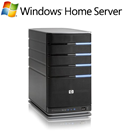
windows_home_server If you have multiple Windows based computers in your home you should seriously consider a Windows Home Server machine.  WHS is designed so that it only keeps one backup copy of each identical file from each machine, which is VERY EFFICIENT compared to backing up each machine individually.  WHS does FULL SYSTEM BACKUPS of EVERY machine in the home, EVERY night.  Restoring a computer after a COMPLETE hard drive crash (i.e. go buy a new empty hard drive) is stupid easy – you just boot off an included CD, and it does the restore in a few hours automatically.  It just doesn’t get any better than this.

Coming Soon: – What are my options?

Tuesday, February 23, 2010

What IS a backup? What does it mean to backup?

These may seem like the simplest questions, but really they are quite complex, and even heavily debated by some.  Let’s explore…

What is a backup?

The dictionary says this: “a copy or duplicate version, esp. of a file, program, or entire computer system, retained for use in the event that the originalis in some way rendered unusable.”

floor safe The key words there are “copy or duplicate”.  A backup is a second copy of something.  If you have a backup of something, that means that you have the original usable thing, and a second identical copy of that same thing that you can pull out in case the first one is lost, destroyed, stolen, burned up, or whatever.

There are many people who believe that a backup is anything that is not stored directly on your computer.  For example, they think that if you save your digital photos onto an external hard drive, you can then delete the original digital photos from your hard drive, because they are now “backed up”.  The actual word for this concept is Archive.

If you make a copy of a thing on an external hard drive, and then delete the original thing, then you still only have one copy of the thing.  If anything were to happen to that one copy, you will loose the thing.  External hard drives tend to be fairly reliable, but they still have the same weaknesses as any other hard drive, and are even more likely to be accidently dropped or smashed than a typical computer cabinet.

Many experts agree that any given thing is not sufficiently backed up until there are Three copies of the thing – one that you use, the nearby backup that’s immediately handy, and another third copy that’s stored far away from the original in case the original AND it’s backup are destroyed in some kind of fire or other natural disaster that can take out a whole building.  It depends entirely on how important the thing is.

What does it mean to back up?

To “back up” means to create a backup copy of something, and store it safely, separate from the original.

http://farm1.static.flickr.com/35/68017710_123de4638c.jpgIf you have a file on a disk, it is not enough to simply make another copy of the file on the same disk.  What if the disk fails?  Typically, it is good enough to copy a file to a different disk, even if that disk is in the same computer.  Then again, what if the whole computer were to be destroyed?  External hard drives make a good place to store backup copies of files.  They are physically separate from the computer itself, and can be detached and stored seperately, such as in a closet or desk-drawer.

What about Multiple Backups?

Making a backup can be as simple as just copying a file from one hard drive to another.  This is usually fine for things like digital photos, since those pretty much never change once they are taken…

However, if the file is something that gets changed frequently, it may be valuable to create many backups of the file, captured at different points in time.  If you are working on typing a document, you may want to make a backup of it on Monday, then work on it more, then make Another backup of it on Tuesday, etc.  This way, if you discover that you made a major mistake while working on the file on Tuesday, you can go back and retrieve the backup you created on Monday and continue from there.

What is a backup set?

A backup set is a collection of multiple backups of multiple documents over time.  When talking about a collection of multiple documents where some of the documents will be changed or updated over time, but other documents will remain unchanged, it may be more efficient to create a backup set.  This involves making a single “Master Backup” of all of the files in the collection, and then later making additional backups of only the files that have been changed up to that point in time.  This partial backup may be called “Differential” or “Incremental”, and when combined with the Master Backup, can be used to recover all of the files in the collection to the point as they all were after some of them were changed.

Using backup sets to maintain a backup time-line of a group of documents if much more efficient than making multiple copies of the entire set of documents.

Most computer Backup software packages offer the ability to create and maintain backup sets.  It’s usually fairly easy to work with backup sets using one of these programs, but it will still be more complex than simply making a copy of everything you want to protect on an external hard drive, and then sticking that hard drive in a safe place.

What about RAID?  Can I just use a RAID to back up?

Raid is not backupWhat is RAID?

R.A.I.D., which stands for “Redundant Array of Inexpensive Drives”, is a technology that spreads data across multiple physical hard drives in a way that preserves the data even if any one of the hard drives in the group fails.

RAID IS NOT BACKUP

RAID technology does NOT protect against:

  • Accidently deleting data such as when you accidently delete a file from within a program so that it can’t be pulled out of a recycle bin, or if you accidently save a new document over an old one that you didn’t want to loose
  • Deliberate or Malicious vandalism of the data such as an angry child or (soon-to-be-ex) spouse who deletes important documents
  • File corruption such as when a program crashes in the middle of updating a document
  • File corruption or deletion such as when a virus gets on your system and starts to delete your data

RAID technology protects data against hard drive failure.  RAID is all about Availability, not Data Protection.  If you are running a business, and you can’t afford to have your computers stop working because your employees and customers would have to wait for a hard drive to be replaced, and then wait for data to be restored from a backup tape, then you would be able to benefit from using RAID to keep your system going even if a hard drive fails because the data would still be usable by those who need to use it, even while you or your IT staff works to replace the broken hard drive.

http://www.scottkelby.com/blog/wp-content/uploads/2008/05/drobo.jpgWhile RAID itself is NOT a backup strategy, it is perfectly acceptable to STORE your backup data ON a RAID system – As long as there’s still another copy somewhere else.  Think of RAID as “Live Storage”.  It’s really no different than having an external hard drive that is REALLY REALLY REALLY reliable.  The Drobo, for example, is a good looking device for saving your backup copies of a document to.  You can trust that the backups will be safe if a hard drive fails.  Just remember that it does not protect against accidental data deletion, corruption, or vandalism, so you still need another copy of your data to protect against those things.

Up next: What do I need to backup?

Backup Backup Backup

For the longest time, I was one of those guys who never backed up anything. 
I always said “If my hard drive crashes, I’ll just rebuild everything”.
hard drive crash quoteAnd I did.  I’ve rebuilt my machines many times.  It’s always a pain, but I kinda enjoy doing it.  I guess I feel like it’s a chance to tinker all over again.
Every time I got a new hard drive, I looked at it as new raw storage space.  500g drive?  Yeah baby, I can collect 500g more stuff!  I figured everything I had, if I REALLY needed to, I could just download it all over again.  I never really considered what would happen if I lost a really BIG hard drive, and had to re-collect music and movies and stuff…
But lately, I’ve been collecting more and more stuff that I can’t replace.  I have digital photos of my kids.  I have videos of them roller skating.  I have photos of my son playing soccer, and my daughter in gymnastics.  I have the first chat logs from when my wife and I first met online…
And it’s starting to hit me that this stuff really is valuable to me, and if I were to loose it forever, I would be heartbroken.  I don’t want to loose the irreplaceable stuff.
I have a 2bay sata NAS that had 2 500g drives in it.  Not to long ago, I bought two new 1tb drives to replace the 500g drives.  It wasn’t until I had two 500g drives laying on my desk that I realized that I now had the opportunity to start doing backups of mine and my wife’s computers.  What the hell, I’ve got these big drives laying here doing nothing, so what the hell, I’ll tinker with some backups.
Thus started my campaign to backup all my stuff.
But what does it really MEAN to backup your stuff?  What do you need to backup?  Just photos and media?  Everything?  Do I really need to spend the space to backup a computer that’s only really used to browse the web?  There really are lots of things to consider when you start to think about building a backup strategy.
In the next few blog posts, I plan to explore some of the options and ideas behind backing stuff up in your home computers.